
Spatial paint strokes
Spray, marker, roller, brush, ink, chalk, neon, line, and airbrush tools create different visual characters.
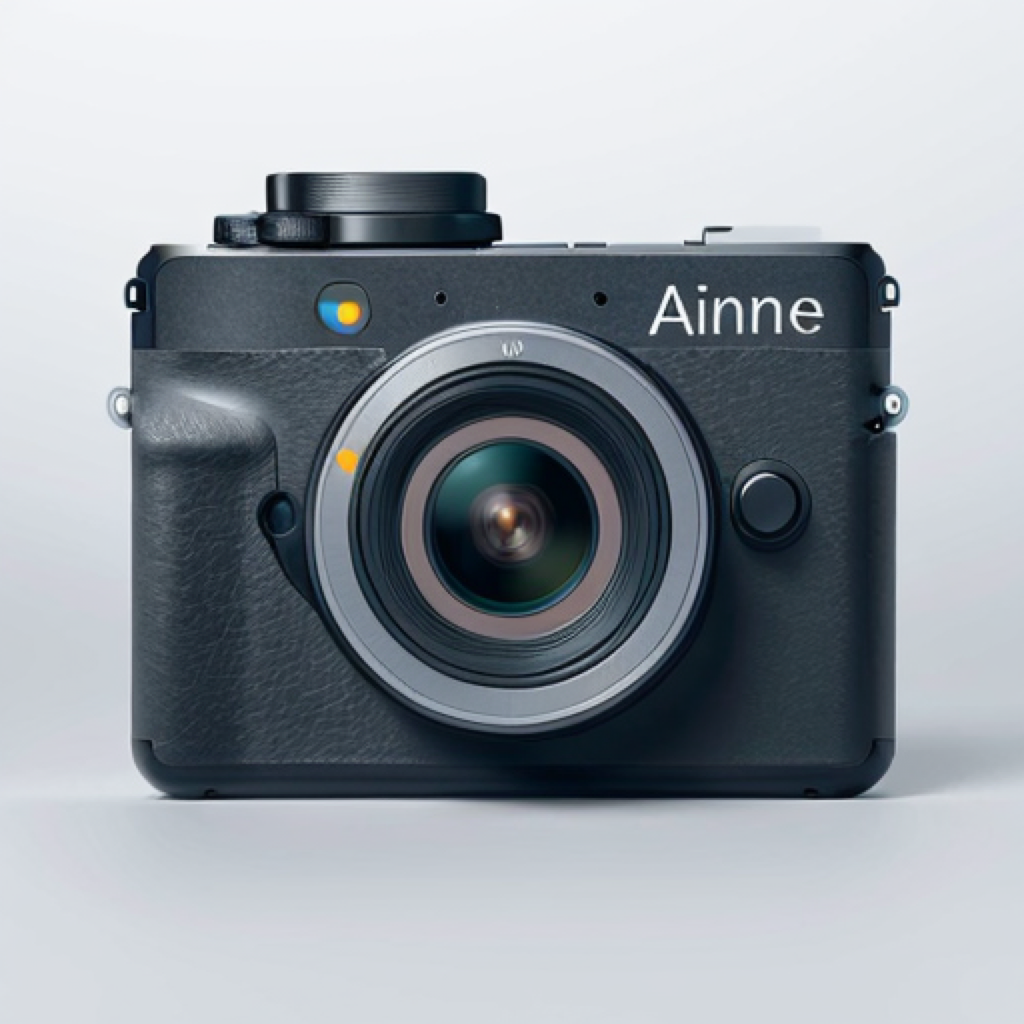 Kamera
Edition B · AR camera for artists
Paint in space. Capture the process. Turn physical artworks into entrances to larger digital works.

Drag to orbit it. Tap the switch button to bring the other device forward.
Not only a flat image
Most camera apps are still mainly designed to capture flat photos and videos. Kamera is designed for a time in which the camera can understand space, surfaces, artworks, rooms, and movement.
It is not AR as a novelty filter. It is AR as a serious artistic medium: a way to create, document, edit, and present work from the same camera.
A focused workspace inside the same camera
Kamera contains many functions for different people. Artist Mode keeps the interface understandable while enabling the creative layer: AR painting, artwork projects, image targets, editing, and capture.
Discuss Artist Mode in Camera Lab →
Activate the functions that belong together for your process.
Stay inside the same camera and return to a simpler view whenever you want.
Settings and toggles let the workflow follow the user instead of forcing one interface on everyone.
1 · Paint directly in space
Open the camera, enter Artist Mode, scan or recognise the surrounding surfaces, choose a brush, and paint directly into the live environment.
2 · Creative AR brush system
The AR painting engine includes real tool families for different marks, materials, and gestures. The list can evolve with the app, but the workflow stays direct and camera-like.
Spray, marker, roller, brush, ink, chalk, neon, line, and airbrush tools create different visual characters.
Wet gloss, drips, colour mixing, stamps, swirl, smudge, lasso, and surface-aware effects change how a stroke behaves.
Extend strokes through the room, around objects, and beyond the dimensions of one physical artwork.
Use the live camera image as the material source. Paint the room with the room itself.
3 · Texture Brush
The Texture Brush uses the live camera image as its texture source. Point at the world, then paint into the surrounding space. The visible surfaces, colours, and structures become part of the stroke.
This is not simply choosing a photo texture from a library. The camera view itself provides the texture, so the stroke can sample, repeat, move, or remap the real surroundings.
Paint the room with the room itself.Discuss Texture Brush in Camera Lab →4 · Live Camera Colour Picker
Point the camera at any visible colour, pick it directly, and continue painting. The same principle can work with existing photos and visible editing content where supported.
5 · Save and reload AR work
Save spatial strokes, arrangements, and image-target projects so you can continue a work, revisit an installation, test variations, or present a prepared setup later. No cloud synchronisation is promised here; the focus is reusable work inside the app.
Creative workflow6 · Artwork-aware photo library
Photograph one of your artworks and identify it as an artwork. When you photograph the same work again, Kamera can recognise it and associate documentation around it automatically.
Progress images, detail shots, installation views, exhibition images, and later recordings can form a clearer history around each piece instead of becoming unrelated camera-roll files. Recognition is a smarter organisational layer, not an infallible promise.
7 · Artwork as an image target
Use your own artwork as an image target, then attach a timelapse, video, digital painting layers, AR strokes, or spatial elements positioned around and in front of the physical work.
The canvas becomes an entrance to a larger digital artwork.
See image-target tools
8 · Show a timelapse on the artwork
Exhibitions can reveal how a piece developed while visitors look at the finished result. Documentation becomes spatial, and the physical and digital versions remain connected.
9 · Custom image-target editor
The editor is intended for video layers, painting layers, AR strokes, visual extensions, and spatial elements larger than the physical artwork.
Roadmap: a fuller 3D editor, higher-resolution projects, AI-assisted 3D generation, richer spatial compositions, and professional exhibition setups are future directions—not finished features.
10–13 · Capture the entire creative process
The same camera used to create the AR work can immediately document it. Creation and capture happen in one place.
Start recording, paint through a room or kitchen, stop, and review the complete spatial painting process.
Document room-scale painting, installations across several walls, and work too wide for one normal frame.
Capture the AR creation as a still or normal video without rebuilding the work afterwards.
Keep the development of an installation as a shareable artwork, not only the finished image.
14 · Realtime censorship
Through settings or a privacy-related mode, faces can be censored directly in the camera view using pixelation or black bars. The tools work with front and rear cameras.
Use them when photographing public spaces, documenting exhibitions, recording installation processes, protecting visitors and collaborators, or creating a deliberate visual censorship aesthetic.
15–16 · Keep working after capture
Redraw or paint directly on the image, use detailed creative tools, and pick colours from the photo instead of leaving the visual workflow.
Trim, crop where available, change playback speed, speed up, slow down, reverse, and stitch multiple clips together for a usable short edit.
17 · One connected creative workflow
18 · Built with creative users
Artists, photographers, video makers, galleries, and exhibition teams can rate existing features, request missing tools, discuss workflows, and help shape the roadmap. Suggestions are collected, discussed, rated, and considered—not automatically promised.
Open the creative feature catalogue19 · Creative roadmap
20 · The camera is becoming a creative medium
Kamera connects physical artworks, digital layers, capture, editing, and presentation in one creative camera.
Not live on the App Store yet — this link previews the listing early.